
Edit the text already in your PDFs
Fix a typo, update a date or rewrite a paragraph in an existing PDF. Pagewright changes the words in the file itself and keeps the original layout wherever it can.
How editing existing text works
Choose Edit Existing Content → Edit text (Shift+E). Every paragraph and line Pagewright can edit gets a dashed outline. Click one — or move to it with Tab and press Enter — type your change, and press Enter to apply it or Esc to cancel.

- Whole paragraphs (the default): the paragraph opens in a box that wraps your text the way the page will. When you apply it, the paragraph keeps its original width, line spacing, first-line indent and alignment — left, centred, right or justified.
- Single lines: replace one line at a time, in place. Headings and other lines that aren't part of a paragraph are always edited this way.
- Shift+Enter starts a new line inside a paragraph. Undo and redo work as usual.
Fix a mistake in an existing PDF
A notice says the beds are ready by the end of “Febuary” — misspelled, and before the build even starts. Watch the paragraph being corrected, rewrapped, saved and reopened.

The old wording is really gone
Edited text is rewritten in the page's own content, so the old words are removed from the file — not hidden behind a white box. They can't be selected, copied or found by search afterwards. The page you see while editing is drawn by the same code that saves the file.
Before and after
The existing wording is replaced and the paragraph reflows. Both images are the same part of the page, at the same scale, from the original file and the saved copy.
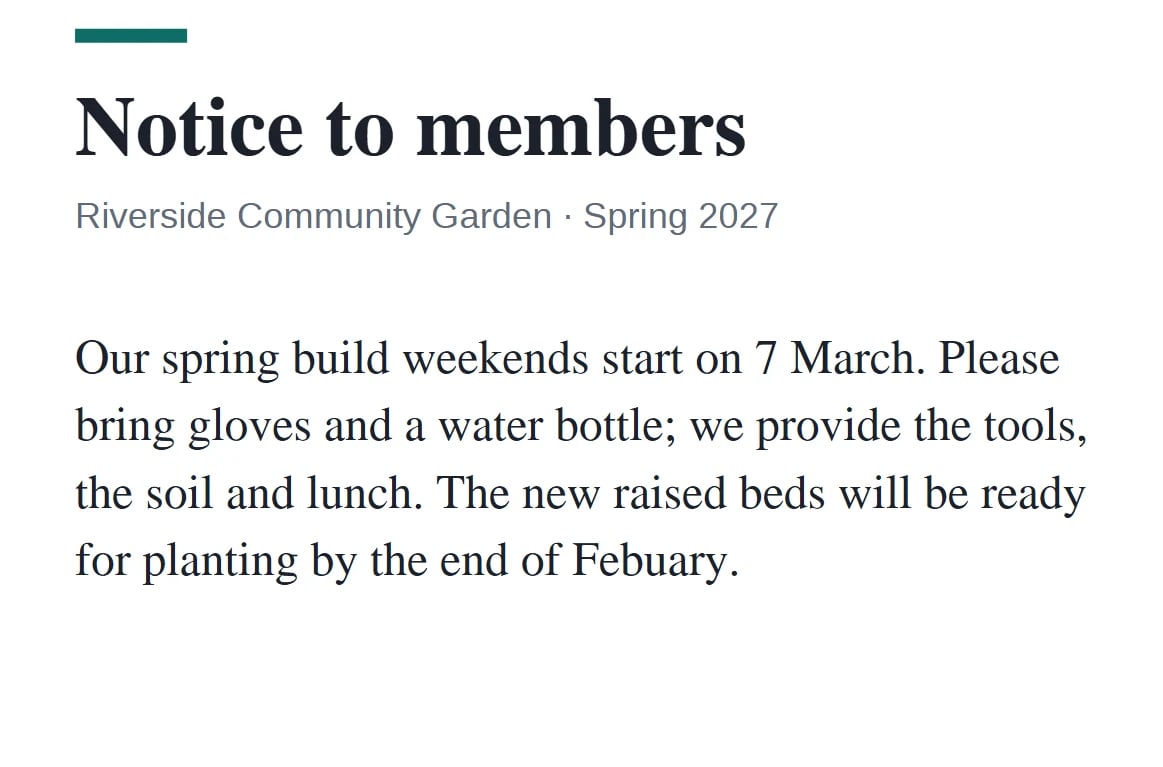
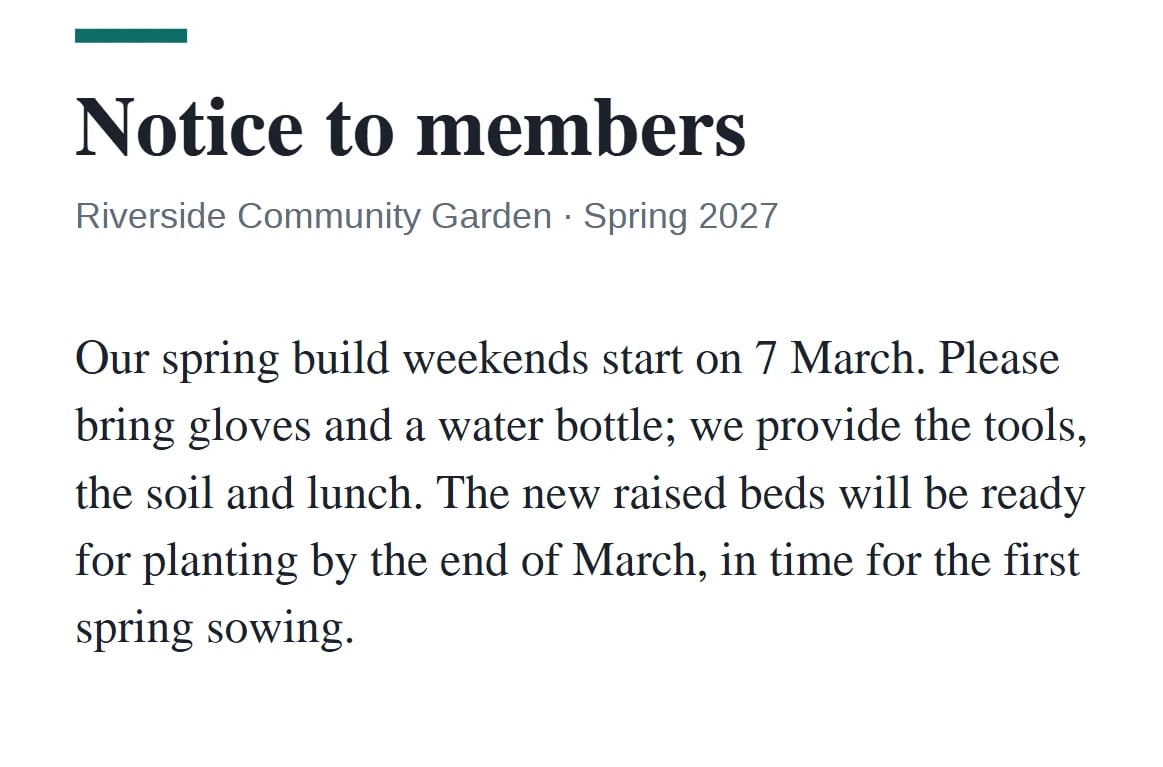
Download the sample pair to check it in any PDF reader: original PDF · corrected copy saved by Pagewright
Fonts
Your text keeps the original font whenever that font contains every character you typed. If it doesn't, Pagewright uses the closest standard font (Helvetica, Times or Courier in the matching style) or one of its bundled fonts for the whole line or paragraph, and tells you which.
What can't be edited yet
These are outlined in grey, and Pagewright explains why when you point at them:
- right-to-left text (such as Arabic or Hebrew) and vertical text, which can't be edited yet;
- text drawn with Type 3 fonts, and text inside a graphic that is repeated on the page or nested in another graphic;
- text with accessibility alternate text, and pages whose content has errors.
A paragraph that mixes fonts or sizes takes the style of its first word. Text after an edited paragraph doesn't move: if your new text needs more lines than fit, it is kept, and Pagewright warns you that it may overlap what is below. Images that are already in a PDF can't be replaced or moved yet.
Add new text and images too
Use Add Content → Text box to place new text with your choice of font, size, colour and alignment, and Image to add a PNG, JPEG, GIF, BMP or WebP picture. Move, resize and delete them, with snapping guides and undo.
Saving safely
Save over the original — Pagewright keeps a backup of the previous file — or save a new copy. Every save is read back by two independent PDF readers before it replaces anything, and if the app closes unexpectedly your unsaved edits are offered back from a recovery journal.
In this group
- Edit existing text. Change the words already in a PDF. Edit a whole paragraph — it rewraps at its original width, spacing and alignment — or replace a single line in place.
- Add text and images. Place text boxes with your choice of font, size, colour and alignment, and add PNG, JPEG, GIF, BMP or WebP images. Move, resize and delete them, with undo.
- Thai text in added content. Text boxes, comments, stamps, headers and form fields accept Thai, drawn with a bundled Noto Sans Thai font so it prints and searches correctly.
- Safe saving and recovery. Save as a new file or replace the original with a backup. Every save is read back by two independent PDF readers before it replaces anything, and unsaved edits are kept in a recovery journal if the app closes unexpectedly.
More features
Organize pages
Put pages in the right order, combine files into one, split a long document apart, and number every page — without uploading anything.
Annotate PDFs
Review documents the way you would on paper — highlight, circle, point and comment — and keep every remark in one list.
Forms and signatures
Fill in forms, sign them with your own handwriting or typed signature, and check the digital signatures on documents you receive.
OCR and conversion
Turn scans into searchable documents, convert between images, text and PDF, and make files smaller — all on your own computer.
Batch processing
Do the same job to a whole folder of PDFs in one go, with a report of what happened — and your original files left untouched.